Templates Ages 6–9

The Sprout PowerPoint template for junior English and early science

Big words, one idea per slide and pictures young readers recognise.

An editable PowerPoint template for junior English and early science with 14 named layouts and 27 original illustrations and icons. Open the .potx, pick a layout from New Slide and type.

The short answer

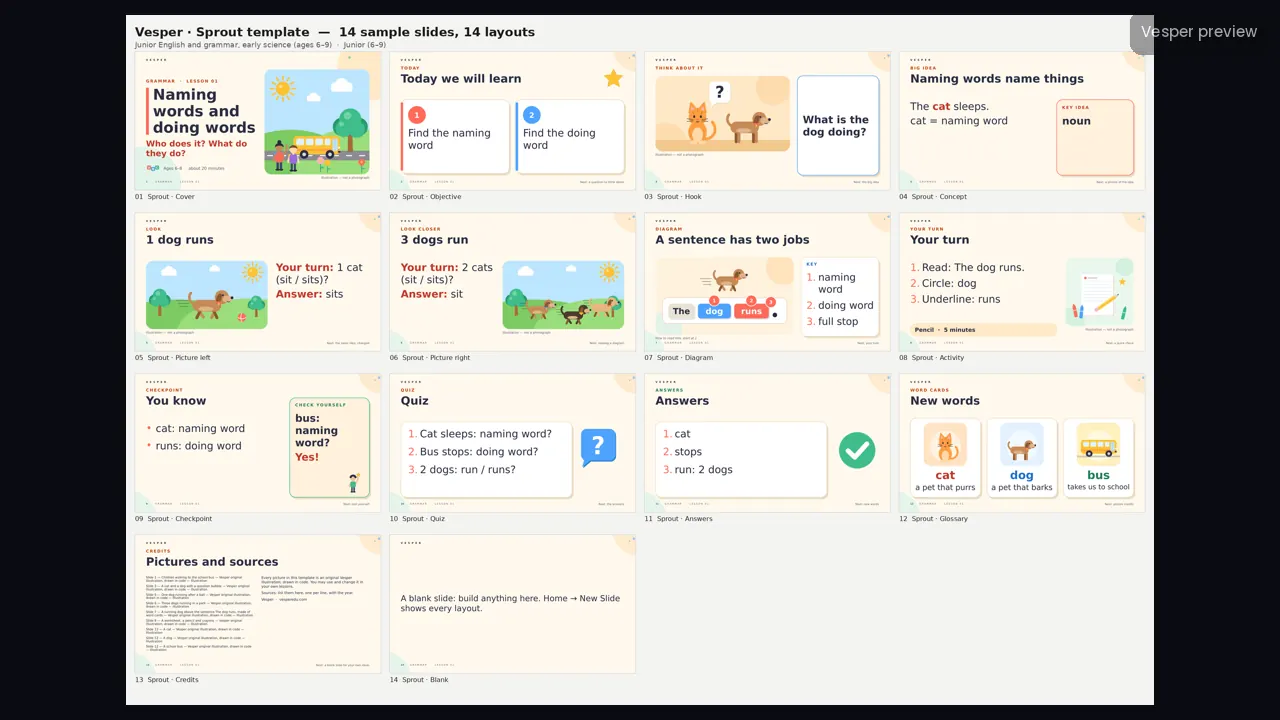
Sprout is a PowerPoint template for junior English and early science lessons, for ages 6–9. It comes as a .potx template and a filled sample deck with 14 named layouts, 27 original illustrations drawn in code, and a two-page teacher guide. Its pictures come from the subject itself: word cards and sentence strips, speech and question bubbles.

Inside

layouts
14
Pricing coming soon

Pricing coming soon

We’ll email you pricing and launch offers shortly.

  • Finished and checked: buying opens soon
  • PowerPoint slide master (.potx) with named layouts, plus a how-to PDF
  • Works in PowerPoint and Google Slides
  • For one classroom. Campus licences for whole schools

Key facts

  • 14 named layouts in one slide master
  • 27 original illustrations, icons and subject icons, drawn in code
  • Delivered as .potx and a filled .pptx sample deck
  • Two-page How-to-use PDF for teachers
  • Built for Junior (6–9) bands

What you can do with it

  • Teachers can start a new junior English and early science deck from the .potx in one click
  • Teachers can add any of the 14 named layouts from Home, New Slide
  • Teachers can swap sample pictures with Change Picture without breaking the layout
  • Teachers can set the series line once in the slide master

About it

What it looks like

Cream background with soft corner blobs, coral, sky blue, leaf green and sunshine yellow, Trebuchet MS headings and Verdana body text, and very rounded corners with a soft sticker shadow.

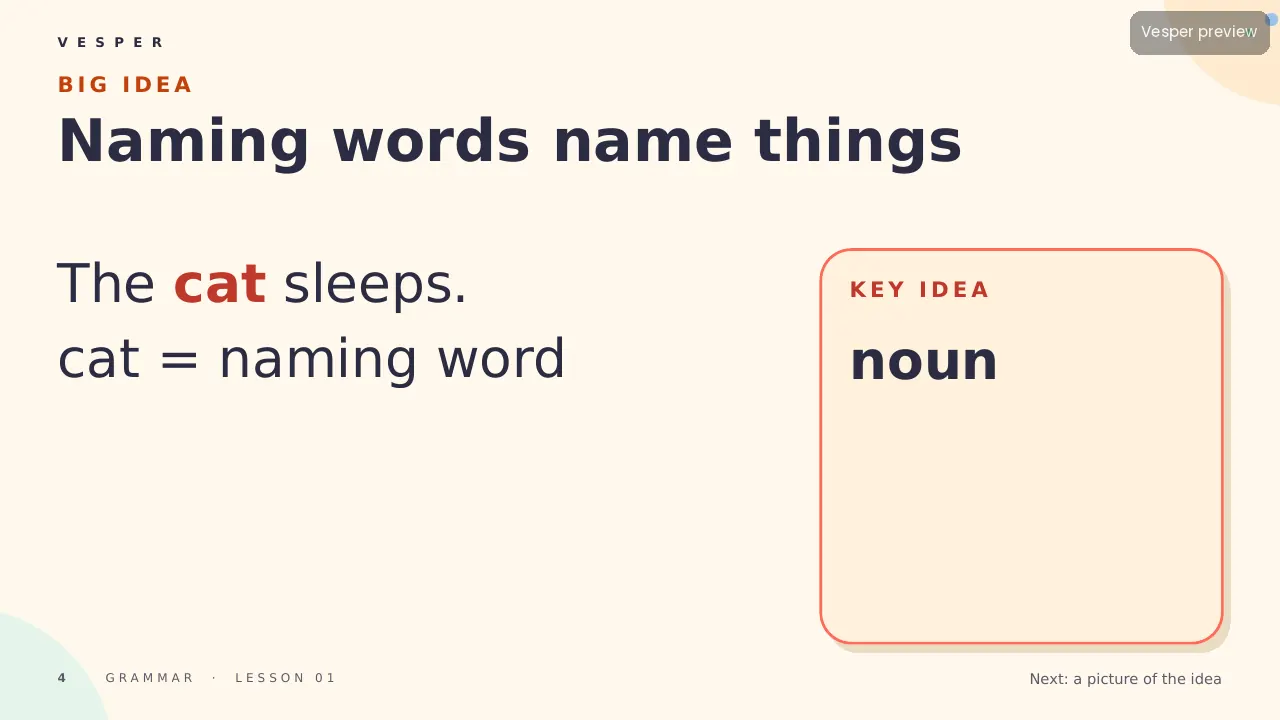
The motifs come from the subject: word cards and sentence strips, speech and question bubbles, books, pencils and crayons, everyday scenes (a park, a school bus, a tree, the sun), cats and dogs as simple flat animals, and children as faceless shapes. Reading text never drops below 40 pt, there are no dark backgrounds, no space imagery, no real children’s faces and no copyrighted characters.

Inside the template

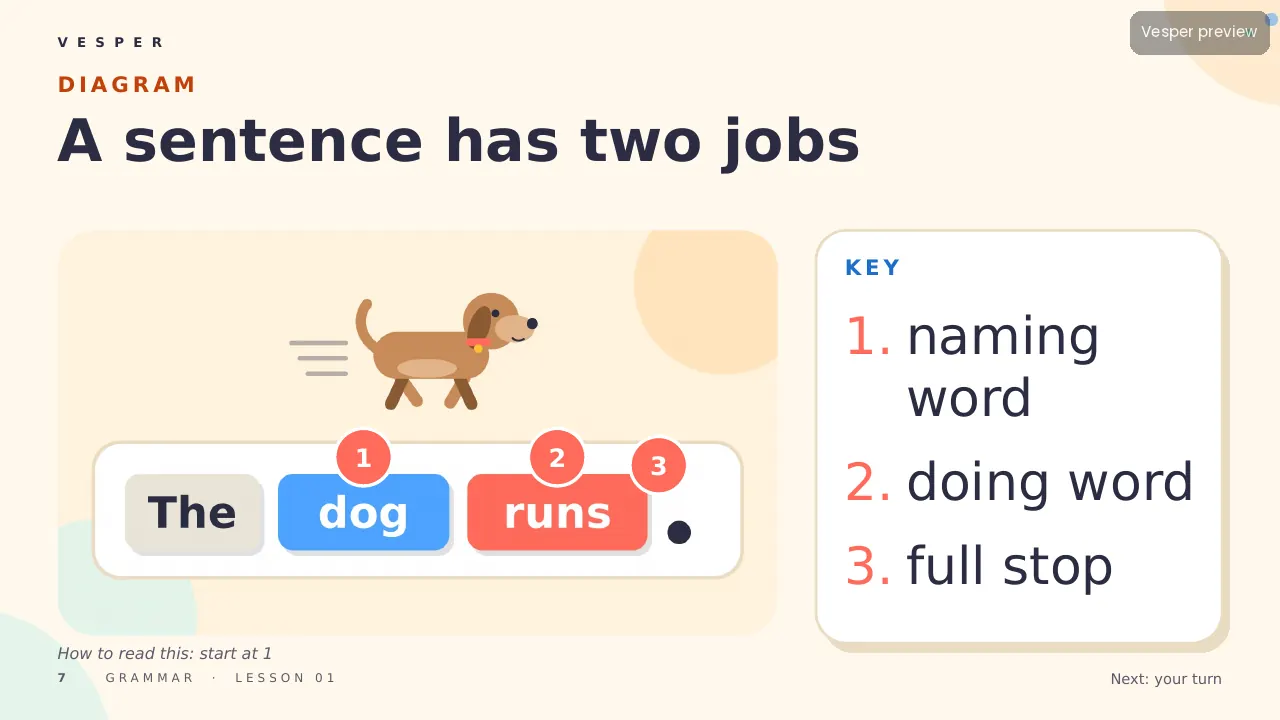
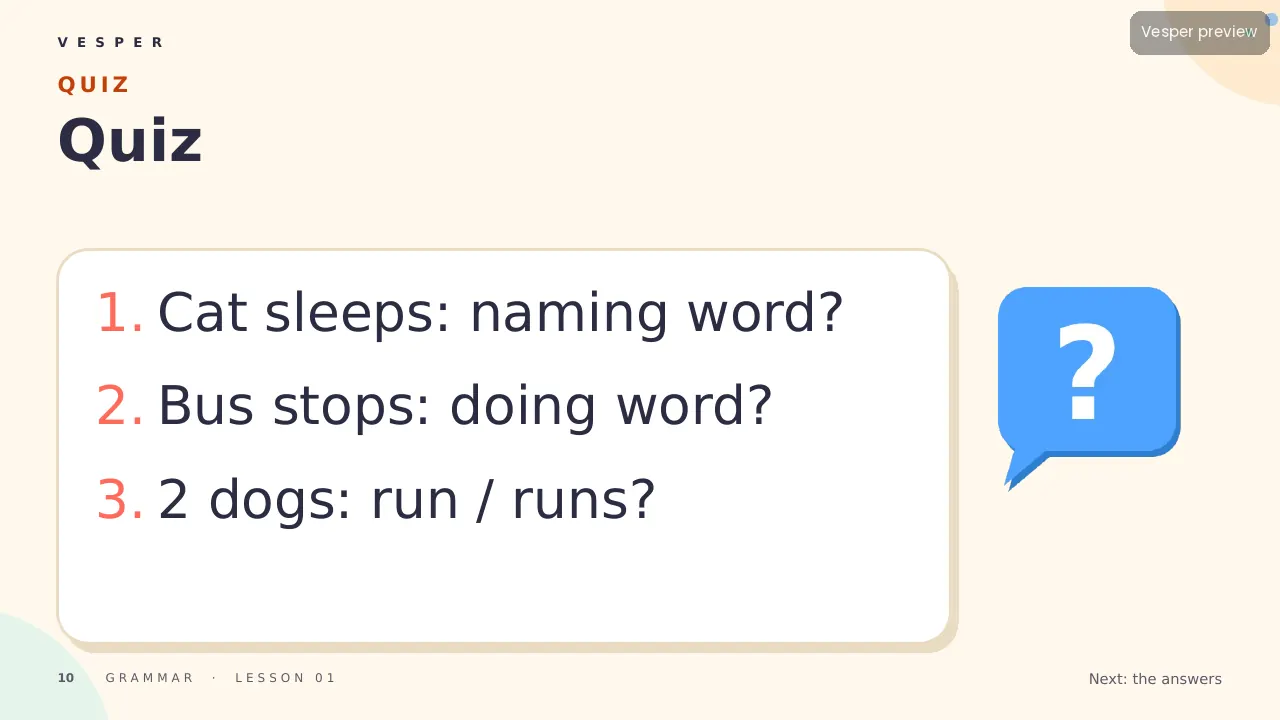
14 named layouts: Cover, Objective, Hook, Concept, Picture left, Picture right, Diagram, Activity, Checkpoint, Quiz, Answers, Glossary, Credits and Blank. The junior band sets titles at 44–60 pt and reading text at 40 pt, with two objectives, three quiz questions and three picture word cards.

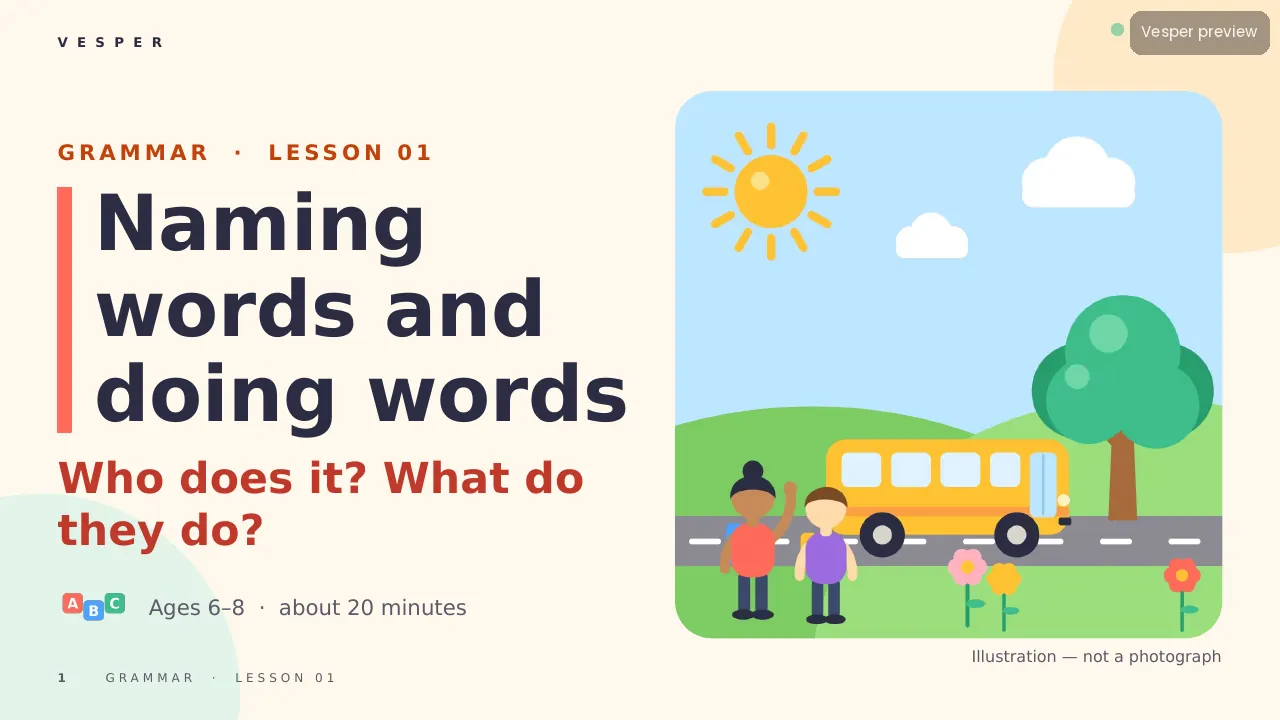
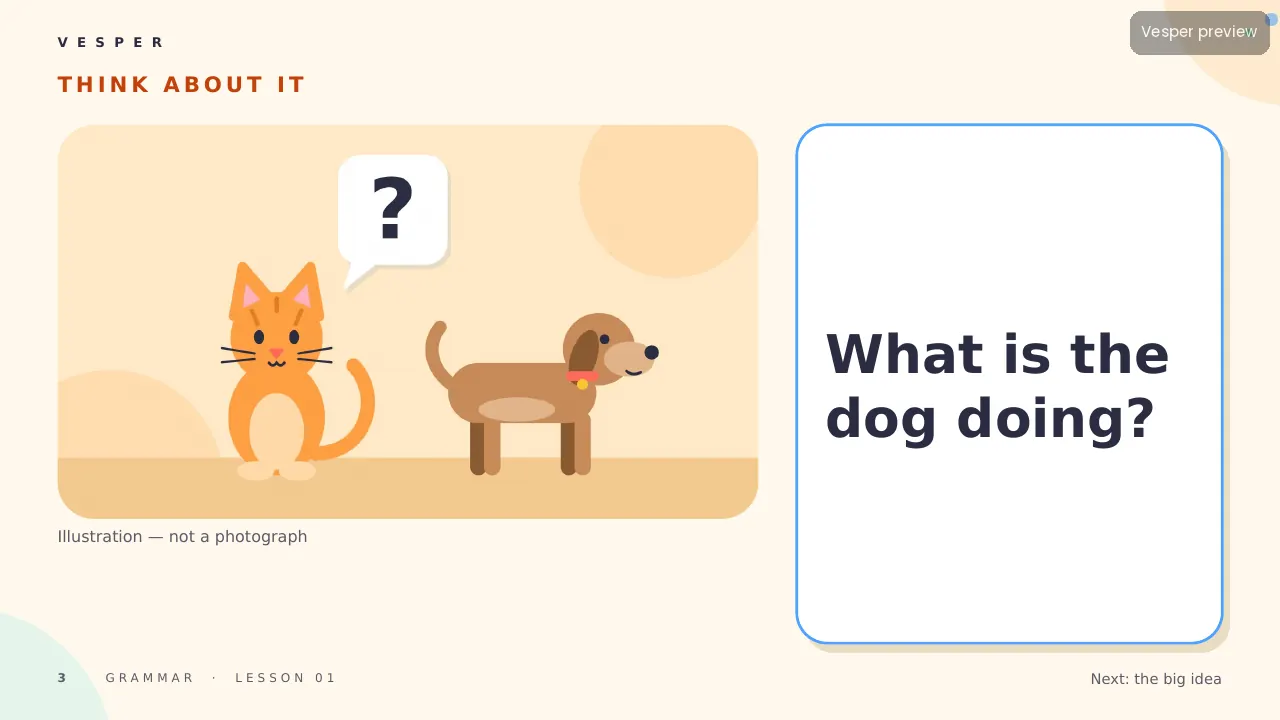
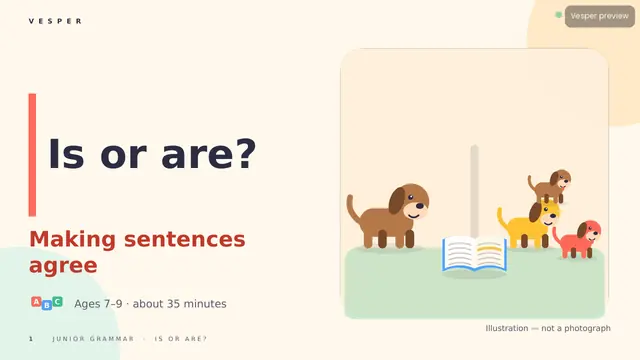
Its 27 sample pictures include children walking to a school bus, a cat and a dog with a question bubble, three dogs in a park and a tree with fruit and roots. Every slide gets the wordmark, a live slide number and an editable series line from the master. Fonts are standard ones that ship with PowerPoint.

How teachers use it

Double-click the .potx to start a new deck, then choose Home, New Slide and pick a layout by name. Replace a sample picture by right-clicking it and choosing Change Picture. Keep to one idea per slide and use the Picture left and Picture right layouts for word-and-picture pairs. Change the series line once in View, Slide Master. The two-page How-to-use PDF walks through it.

Who it’s for

Teachers of junior English and early science for ages 6–9 (Junior (6–9) bands). Any Vesper lesson built on Sprout uses the same slide master, so your own slides sit beside it without a join. It is also part of the all-templates bundle.
Curriculum & specs

CBSE/NCERT (India)Not applicable (template)
CambridgeNot applicable
NGSS (US)Not applicable
IB MYPNot applicable
Ages6–9
LevelJunior
Slide templateSprout
Named layouts14
LanguageEnglish (UK)

Questions

Questions, answered

What is the Sprout template for?

Junior English and early science lessons for ages 6–9. Big words, one idea per slide and pictures young readers recognise.

How do I add a new slide?

In PowerPoint, choose Home, New Slide and pick a layout by its name. Every layout keeps the wordmark, slide number and series line.

Can I change the pictures?

Yes. Right-click a picture and choose Change Picture. The sample illustrations are original Vesper artwork drawn in code.

Does it work in Google Slides?

It is built for PowerPoint (.potx and .pptx). Its fonts are standard ones that also exist in Google Slides.

Can I use it for my own lessons?

Yes. It is made for teachers to build their own decks, and Vesper lessons in the same family share its master, so you can add your own slides to them.

Is the template free?

No. It is a paid template, and it is also included in the bundle of all 11 Vesper templates.

Main sources

  1. Original Vesper illustrations drawn in code (no stock, no Canva elements, no copyrighted characters)

The full source list is on the last slides of the deck. Spotted an error? Tell us.